


1. Introduction
As mobile devices are limited with memory, we must follow certain best practices to provide best performance smooth user experience. Among set of best practices, the one holds most priority is to take the long running heavy operations off the main thread.
Any long running tasks or heavy operations are usually performed in a different thread, to make sure your main thread does the minimum amount of work. Example of a typical long running tasks could be network operations, reading files form memory, animations, etc.
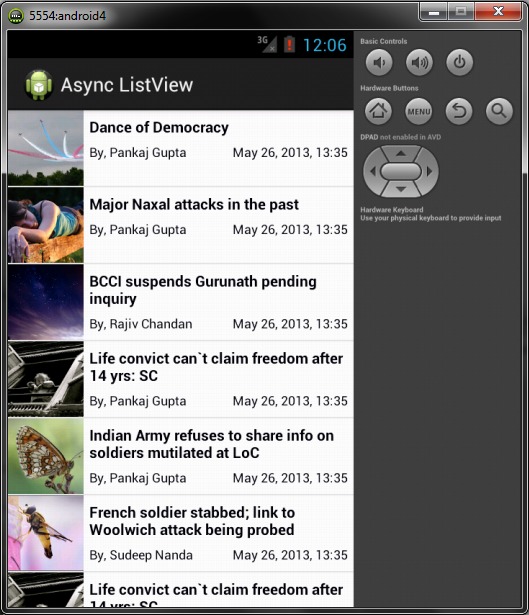
In this tutorial, we will create a sample ListView in Android that downloads data asynchronously from the internet using a AsyncTask. As you can see in the screenshot below, the ListView contains a image thumbnails on each row, we will download the images asynchronously form server.
1. What is Android AsyncTask
AsyncTask enables you to implement MultiThreading without get Hands dirty into threads. AsyncTask is easy to use, and it allows performing background operation in background thread and passing the results on the UI thread. If you are doing something isolated related to UI, for example downloading data for List view, go ahead and use AsyncTask.
Some of the AsyncTask characteristics are as follows
- AsyncTasks should ideally be used for short operations
- An asynchronous task is defined by 3 generic types, called Params, Progress and Result, and 4 steps, called onPreExecute, doInBackground, onProgressUpdate and onPostExecute.
- In onPreExecute you can define code, which need to be executed before background processing starts.
- The doInBackground() method contains the code which needs to be executed in background, here in doInBackground we can send results to multiple times to event thread by publishProgress() method, to notify background processing has been completed we can return results simply.
- The onProgressUpdate() method receives progress updates from doInBackground method, which is published via publishProgress method, and this method can use this progress update to update event thread
- The onPostExecute() method handles results returned by doInBackground method.
- If an async task not using any types, then it can be marked as Void type.
- An running async task can be cancelled by calling cancel(boolean) method.
The generic types used by AsyncTask are
- Params, the type of the parameters sent to the task upon execution
- Progress, the type of the progress units published during the background computation.
- Result, the type of the result of the background computation.
2. Creating a Custom ListView
1.1. Define List Row Layout
In this tutorials we are planning to crate a ListView similar to the image shown below. You can use a RelativeLayout for this.
<?xml version="1.0" encoding="utf-8"?>
<RelativeLayout xmlns:android="http://schemas.android.com/apk/res/android"
    android:layout_width="fill_parent"
    android:layout_height="wrap_content"
    android:minHeight="50dp"
    android:orientation="horizontal" >

    <ImageView
        android:id="@+id/thumbImage"
        android:layout_width="70dp"
        android:layout_height="70dp"
        android:layout_alignParentLeft="true"
        android:layout_centerVertical="true"
        android:background="@drawable/list_placeholder" />

    <TextView
        android:id="@+id/title"
        android:layout_width="wrap_content"
        android:layout_height="wrap_content"
        android:layout_toRightOf="@id/thumbImage"
        android:paddingLeft="5dp"
        android:paddingTop="5dp"
        android:text=""
        android:textColor="@drawable/list_item_text_selector"
        android:textStyle="bold"
        android:typeface="sans" />

    <TextView
        android:id="@+id/reporter"
        android:layout_width="wrap_content"
        android:layout_height="wrap_content"
        android:layout_below="@id/title"
        android:layout_marginTop="5dip"
        android:layout_toRightOf="@id/thumbImage"
        android:paddingLeft="5dp"
        android:text=""
        android:textColor="@drawable/list_item_text_selector"
        android:textSize="12sp" />

    <TextView
        android:id="@+id/date"
        android:layout_width="wrap_content"
        android:layout_height="wrap_content"
        android:layout_alignBaseline="@+id/reporter"
        android:layout_alignBottom="@+id/reporter"
        android:layout_alignParentRight="true"
        android:paddingRight="5dp"
        android:text=""
        android:textColor="@drawable/list_item_text_selector"
        android:textSize="12sp" />

</RelativeLayout>
1.2. Creating A Custom Adapter
public class CustomListAdapter extends BaseAdapter {
	private ArrayList listData;
	private LayoutInflater layoutInflater;

	public CustomListAdapter(Context context, ArrayList listData) {
		this.listData = listData;
		layoutInflater = LayoutInflater.from(context);
	}

	@Override
	public int getCount() {
		return listData.size();
	}

	@Override
	public Object getItem(int position) {
		return listData.get(position);
	}

	@Override
	public long getItemId(int position) {
		return position;
	}

	public View getView(int position, View convertView, ViewGroup parent) {
		ViewHolder holder;
		if (convertView == null) {
			convertView = layoutInflater.inflate(R.layout.list_row_layout, null);
			holder = new ViewHolder();
			holder.headlineView = (TextView) convertView.findViewById(R.id.title);
			holder.reporterNameView = (TextView) convertView.findViewById(R.id.reporter);
			holder.reportedDateView = (TextView) convertView.findViewById(R.id.date);
			holder.imageView = (ImageView) convertView.findViewById(R.id.thumbImage);
			convertView.setTag(holder);
		} else {
			holder = (ViewHolder) convertView.getTag();
		}

		NewsItem newsItem = (NewsItem) listData.get(position);
		holder.headlineView.setText(newsItem.getHeadline());
		holder.reporterNameView.setText("By, " + newsItem.getReporterName());
		holder.reportedDateView.setText(newsItem.getDate());

		if (holder.imageView != null) {
			new ImageDownloaderTask(holder.imageView).execute(newsItem.getUrl());
		}
		return convertView;
	}

	static class ViewHolder {
		TextView headlineView;
		TextView reporterNameView;
		TextView reportedDateView;
		ImageView imageView;
	}
}
1.3. Adding ListView to activity
Main Activity Layout
<?xml version="1.0" encoding="utf-8"?>
<LinearLayout xmlns:android="http://schemas.android.com/apk/res/android"
    android:layout_width="fill_parent"
    android:layout_height="fill_parent"
    android:orientation="vertical" >

    <ListView
        android:id="@+id/custom_list"
        android:layout_width="fill_parent"
        android:layout_height="fill_parent"
        android:dividerHeight="1dp"
        android:listSelector="@drawable/list_selector_flatcolor" />

</LinearLayout>
Here is my activity code
public class MainActivity extends Activity {

	@Override
	public void onCreate(Bundle savedInstanceState) {
		super.onCreate(savedInstanceState);
		setContentView(R.layout.activity_main);

		ArrayList image_details = getListData();
		final ListView lv1 = (ListView) findViewById(R.id.custom_list);
		lv1.setAdapter(new CustomListAdapter(this, image_details));
		lv1.setOnItemClickListener(new OnItemClickListener() {

			@Override
			public void onItemClick(AdapterView<?> a, View v, int position, long id) {
				Object o = lv1.getItemAtPosition(position);
				NewsItem newsData = (NewsItem) o;
				Toast.makeText(MainActivity.this, "Selected :" + " " + newsData,
						Toast.LENGTH_LONG).show();
			}
		});
	}

	private ArrayList getListData() {
		ArrayList results = new ArrayList();
		NewsItem newsData = new NewsItem();
		newsData.setHeadline("Dance of Democracy");
		newsData.setReporterName("Pankaj Gupta");
		newsData.setDate("May 26, 2013, 13:35");
		newsData.setUrl("http://lh5.ggpht.com/_hepKlJWopDg/TB-_WXikaYI/AAAAAAAAElI/715k4NvBM4w/s144-c/IMG_0075.JPG");
		results.add(newsData);

                //Add some more dummy data to test this app.
		return results;
	}
}
3. Asynchronous ListView Example
3.1. Downloading Image From Web
static Bitmap downloadBitmap(String url) {
	final AndroidHttpClient client = AndroidHttpClient.newInstance("Android");
	final HttpGet getRequest = new HttpGet(url);
	try {
		HttpResponse response = client.execute(getRequest);
		final int statusCode = response.getStatusLine().getStatusCode();
		if (statusCode != HttpStatus.SC_OK) {
			Log.w("ImageDownloader", "Error " + statusCode
					+ " while retrieving bitmap from " + url);
			return null;
		}

		final HttpEntity entity = response.getEntity();
		if (entity != null) {
			InputStream inputStream = null;
			try {
				inputStream = entity.getContent();
				final Bitmap bitmap = BitmapFactory.decodeStream(inputStream);
				return bitmap;
			} finally {
				if (inputStream != null) {
					inputStream.close();
				}
				entity.consumeContent();
			}
		}
	} catch (Exception e) {
		// Could provide a more explicit error message for IOException or
		// IllegalStateException
		getRequest.abort();
		Log.w("ImageDownloader", "Error while retrieving bitmap from " + url);
	} finally {
		if (client != null) {
			client.close();
		}
	}
	return null;
}
3.2. Downloading Image Using AsyncTask
class ImageDownloaderTask extends AsyncTask<String, Void, Bitmap> {
	private final WeakReference imageViewReference;

	public ImageDownloaderTask(ImageView imageView) {
		imageViewReference = new WeakReference(imageView);
	}

	@Override
	// Actual download method, run in the task thread
	protected Bitmap doInBackground(String... params) {
		// params comes from the execute() call: params[0] is the url.
		return downloadBitmap(params[0]);
	}

	@Override
	// Once the image is downloaded, associates it to the imageView
	protected void onPostExecute(Bitmap bitmap) {
		if (isCancelled()) {
			bitmap = null;
		}

		if (imageViewReference != null) {
			ImageView imageView = imageViewReference.get();
			if (imageView != null) {

				if (bitmap != null) {
					imageView.setImageBitmap(bitmap);
				} else {
					imageView.setImageDrawable(imageView.getContext().getResources()
							.getDrawable(R.drawable.list_placeholder));
				}
			}

		}
	}

}
4. Output
5. Download Complete Example
Here you can download complete eclipse project source code from GitHub.
6. References
http://developer.android.com/reference/android/os/AsyncTask.html

